
To run Photoshop smoothly, your system needs to meet certain hardware requirements. These specifications ensure the software operates efficiently, particularly when working with large files and complex projects. Below are the minimum specs you need to get started.
Processor: Photoshop requires at least a 64-bit multi-core processor. A modern Intel i5 or AMD Ryzen 5 processor should be sufficient for basic editing tasks. However, for more intensive workflows, an Intel i7 or AMD Ryzen 7 will provide a smoother experience, especially when working with high-resolution images.
Memory (RAM): A minimum of 8GB of RAM is necessary, but 16GB is recommended for better performance. With more RAM, Photoshop can handle larger files and run multiple operations simultaneously without slowing down.
Storage: You’ll need at least 4GB of available hard disk space for installation. An SSD (Solid State Drive) is highly recommended for faster performance, as it improves loading times and responsiveness. The more storage you have, the better Photoshop can manage large projects and files.
Graphics Card: A dedicated GPU is not required for basic use, but for smoother experience, especially with 3D content or heavy editing, a GPU with at least 2GB of VRAM will significantly help. Consider using newer models from Nvidia or AMD for optimal performance.
Display: A screen resolution of 1280 x 800 is the minimum, but higher resolutions, such as 1920 x 1080 or 4K, offer a better workspace and sharper image details. If you work on color-sensitive tasks, a color-calibrated display is a must.
Minimum Specs for Photoshop
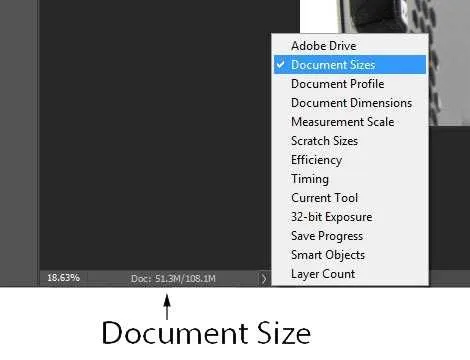
To run Photoshop smoothly, your computer must meet these minimum system requirements. Make sure to check both the processor and memory specifications to ensure optimal performance.
Operating System: Windows 10 (64-bit) or macOS 10.15 (Catalina) or later.
Processor: At least Intel Core i5 or AMD Ryzen 5 with 64-bit support. A multi-core processor is recommended for better handling of tasks like rendering and multitasking.
Memory: 8GB RAM minimum. 16GB is recommended for more demanding tasks, especially when working with large files or multiple layers.
Graphics Card: DirectX 12 compatible GPU with 2GB of VRAM. A dedicated graphics card like an Nvidia GTX or AMD Radeon will enhance performance when working with 3D elements or using advanced filters.
Storage: 4GB of available hard-disk space for installation. An SSD is recommended for faster load times and smoother performance when working with large files.
Display: 1280 x 800 resolution with 16-bit color. A higher resolution screen will offer better clarity, especially when working with detailed images.
Ensure your system meets these minimum specifications to avoid performance issues when using Photoshop.
Checking Your Computer’s Compatibility with Photoshop

To verify if your computer meets the minimum requirements for Photoshop, start by checking your operating system version. Photoshop requires at least Windows 10 (64-bit) or macOS 10.15. Ensure your system is up-to-date with the latest patches and updates.
Next, check your processor. Photoshop requires at least an Intel or AMD processor with a clock speed of 2 GHz or higher. For smoother performance, a multi-core processor is recommended, but not mandatory. Open the Task Manager or Activity Monitor to see your CPU specifications.
Graphics card compatibility is also key. Make sure your system has a DirectX 12 compatible GPU with at least 2 GB of VRAM. Older integrated graphics may struggle with certain Photoshop features like 3D rendering or high-resolution image processing.
RAM plays a significant role in performance. Photoshop recommends 8 GB of RAM, but 16 GB or more will yield better results for multitasking and working with large files. You can check your RAM usage by opening the system settings or Task Manager/Activity Monitor.
Storage is another critical factor. You need a minimum of 4 GB of free disk space for installation, with an additional 10 GB or more recommended for scratch disk usage. An SSD (Solid State Drive) improves load times and file access speeds.
Lastly, check your screen resolution. Photoshop requires at least 1280×800 resolution, but for optimal usage, higher resolutions (1920×1080 or greater) are preferred for better clarity and workspace.
Upgrading Your PC for Photoshop Performance
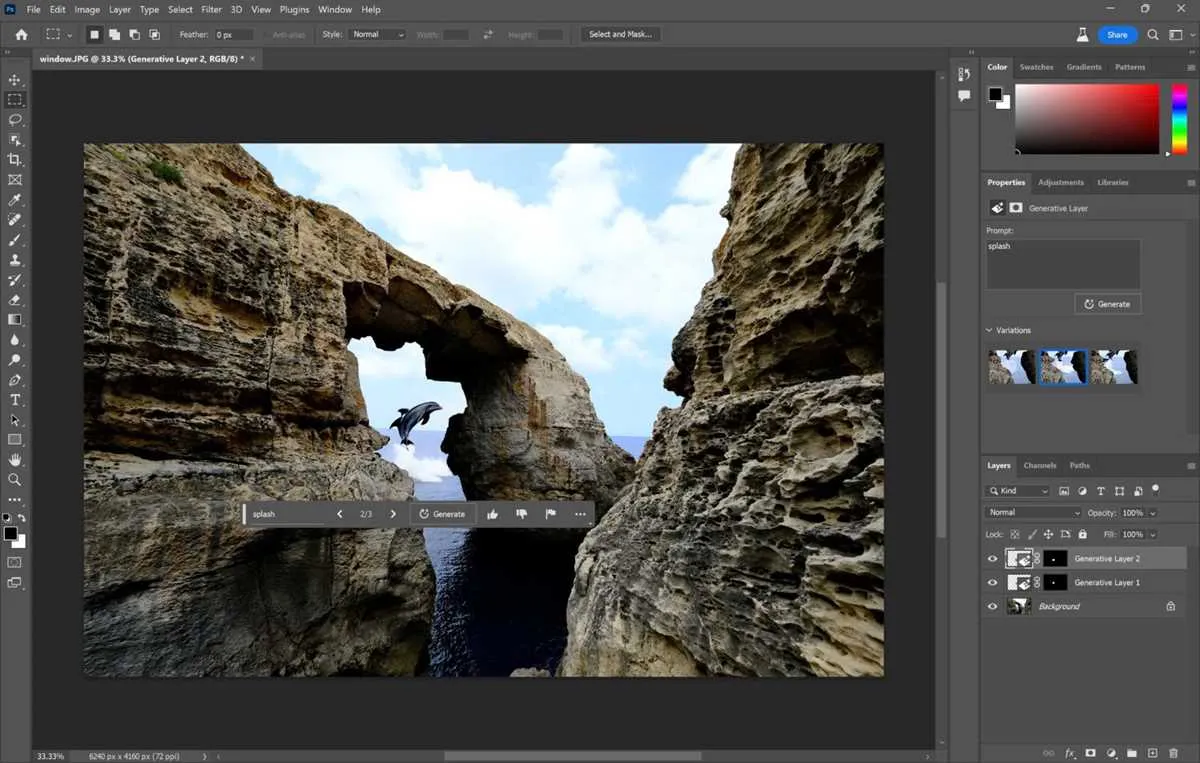
Upgrade your PC by focusing on specific hardware that boosts Photoshop performance. Start with your CPU; Photoshop benefits from multi-core processors, so opt for an Intel i7 or AMD Ryzen 7 or higher. These will speed up processing times for large files and enhance multitasking capabilities.
Next, improve your RAM. Photoshop requires a minimum of 8 GB of RAM, but 16 GB or more is recommended for smooth performance when working with complex projects. Upgrading RAM allows for better handling of multiple layers and large images.
Consider upgrading your graphics card (GPU). While Photoshop primarily uses the CPU, certain features like 3D rendering and accelerated effects rely on GPU power. A dedicated GPU, such as an NVIDIA GTX 1660 or RTX 3060, will significantly improve overall responsiveness and render times for GPU-accelerated features.
Don’t forget your storage. SSDs (Solid-State Drives) are much faster than traditional HDDs and will dramatically reduce load times and improve file handling. An SSD for your primary drive is a great choice, with a secondary drive for storing large projects if necessary.
Lastly, ensure your monitor has the right color accuracy and resolution. A 1920×1080 or higher resolution monitor with a wide color gamut ensures that your design work appears as intended, making image editing more precise.
Common Hardware Issues Affecting Photoshop and How to Resolve Them
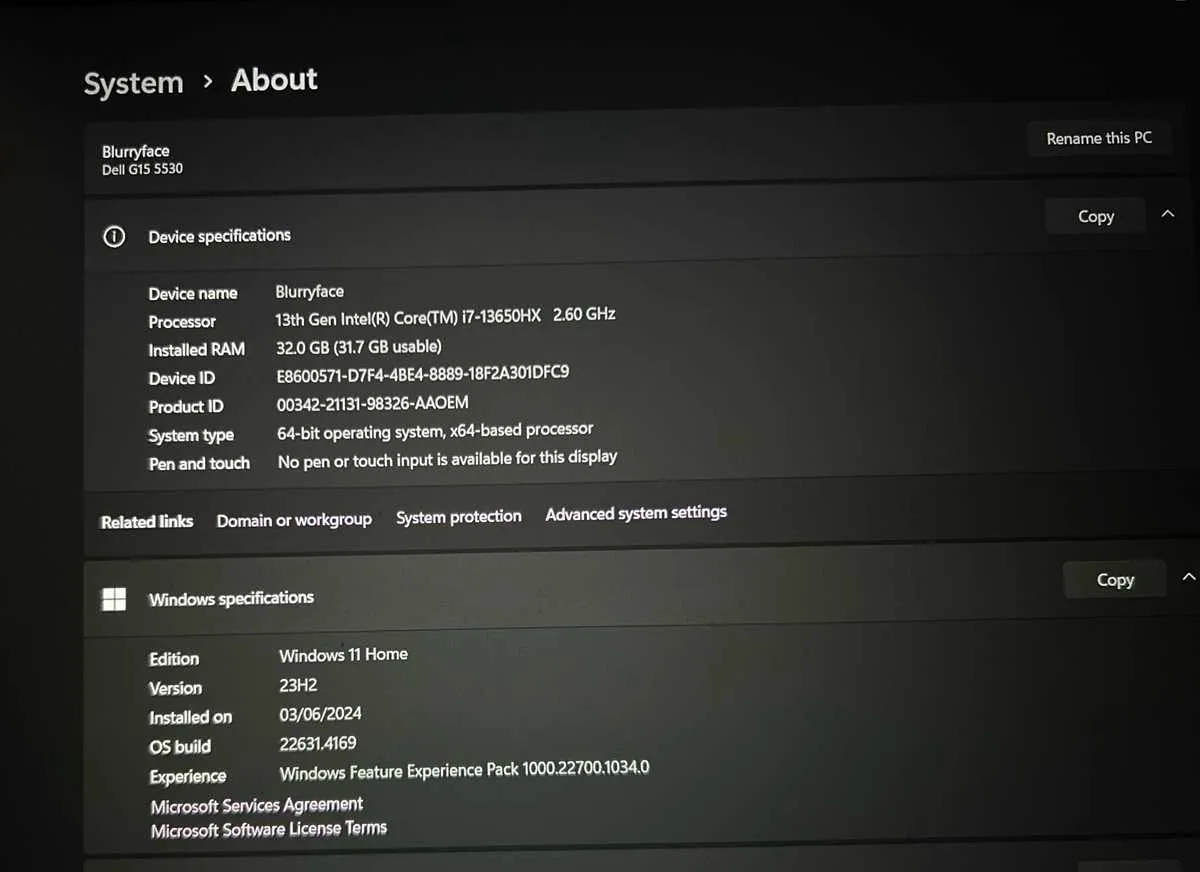
Low RAM can cause Photoshop to lag or crash when handling large files. Upgrading your system’s memory can significantly improve performance. For optimal use, aim for at least 16 GB of RAM, especially when working with complex projects or large images.
Insufficient GPU power can lead to sluggish performance in Photoshop, especially when using advanced features like 3D rendering or applying filters. Make sure your graphics card is compatible with the latest version of Photoshop and supports OpenGL for smoother rendering. Consider upgrading to a dedicated GPU if you’re using integrated graphics.
Outdated or mismatched drivers can create compatibility issues between your hardware and Photoshop. Regularly update your graphics card and motherboard drivers to avoid errors and enhance performance. Visit the manufacturer’s website to download the latest updates and ensure Photoshop runs smoothly.
Slow storage drives can significantly impact Photoshop’s performance, particularly when working with large files or multiple layers. Switching to an SSD for your primary storage drive will decrease load times and improve overall system responsiveness. Avoid using traditional HDDs for Photoshop files, as they are slower and may lead to delays during processing.
Overheating can throttle your CPU and GPU, causing Photoshop to run slower or even crash. Ensure your system has proper cooling and airflow, especially if you’re working with resource-intensive tasks. Clean your PC’s fans and consider adding more cooling components if your system gets too hot during heavy use.
System resource limitations can impact Photoshop’s responsiveness, especially when multitasking or running other applications alongside it. Close unnecessary background processes to free up CPU and memory resources. This allows Photoshop to operate with more system power, improving its efficiency.